WriteDeck - a nice productivity idea
Last year I bought a nice MacBook Pro M4 that I use as a daily driver. Fantastic machine. Nevertheless, I had a bit of a broken hearted sensation, because my older Lenovo Thinkpad T490 (that I bought in 2020) had served me perfectly fine and has been a loyal servant.
But let’s be real, Linux laptops (I am not installing Windows) are not really trustworthy when you need:
- Long-lasting battery autonomy
- Unpredictable behavior when plugging into other devices, especially projectors when you give a talk.
So, my beloved Thinkpad started to accumulate dust on one of my shelves… but I would not give up on that amazing keyboard that easily.
The WriteDeck concept
In the era of multipurpose objects, your computer can do a lot of stuff simultaneously: write emails, prepare figures, slides, chats blablabla.
This is a trend that bothers me a lot. If I want to read the time, I use an analogue watch. If I want to take a photo, I use a camera. The idea of a smartphone just disgusts me, but in that case I cannot fight it, the inertia is too high.
I found myself daydreaming about a machine just to write. It turns out that my previous generation had that: a typewriter.
I considered buying a typewriter, but then I stumbled upon the WriteDeck concept: repurposed machines conceived just for distraction free writing: people would repurpose cellphones, calculators, even gameboys (wtf?).
It turned out I had my Thinkpad there… she is so back!
How to do it in a few words
Start by wiping out the operating system that your machine had. In my case I installed a modern version of Linux Mint. Do it as you would do it normally.
Make your operating system go straight to the
tty1upon reboot. With this, you will not fire up the desktop environment and you will live forever in the terminal. No graphics, no bullshit.If you are comfortable with the terminal you will find it quite easy to move, however you will notice that characters are small, not enough support for colors and a large etc. What you need to do is to install
kmscon; this piece of software will add all of these.Install
tmuxto get access to multiplexing capabilities.Pick the writing software of your choice. In my case I am happy with
nano. I find all theemacsorvimshortcut stuff a bit obnoxious. I want just to write. Of course I will not havelatexrendering capacities, but I do not care: I want to focus on words.Install an LLM CLI. I am using
kilocodewhich you can install very easily throughnpm, and the free tier is more than enough to do basic proofreading.
I will not go into details of each of the steps, because I promised just to make it in a few words, and for you to catch the idea. You can find further information in this amazing YouTube channel: link to VeronicaExplains.
Veronica also writes for the enthusiasts of her content. I suggest, for this topic:
Result
This is how my Writedeck looks like (here my writing on the left and the butchering of kilocode of my horrendous french)
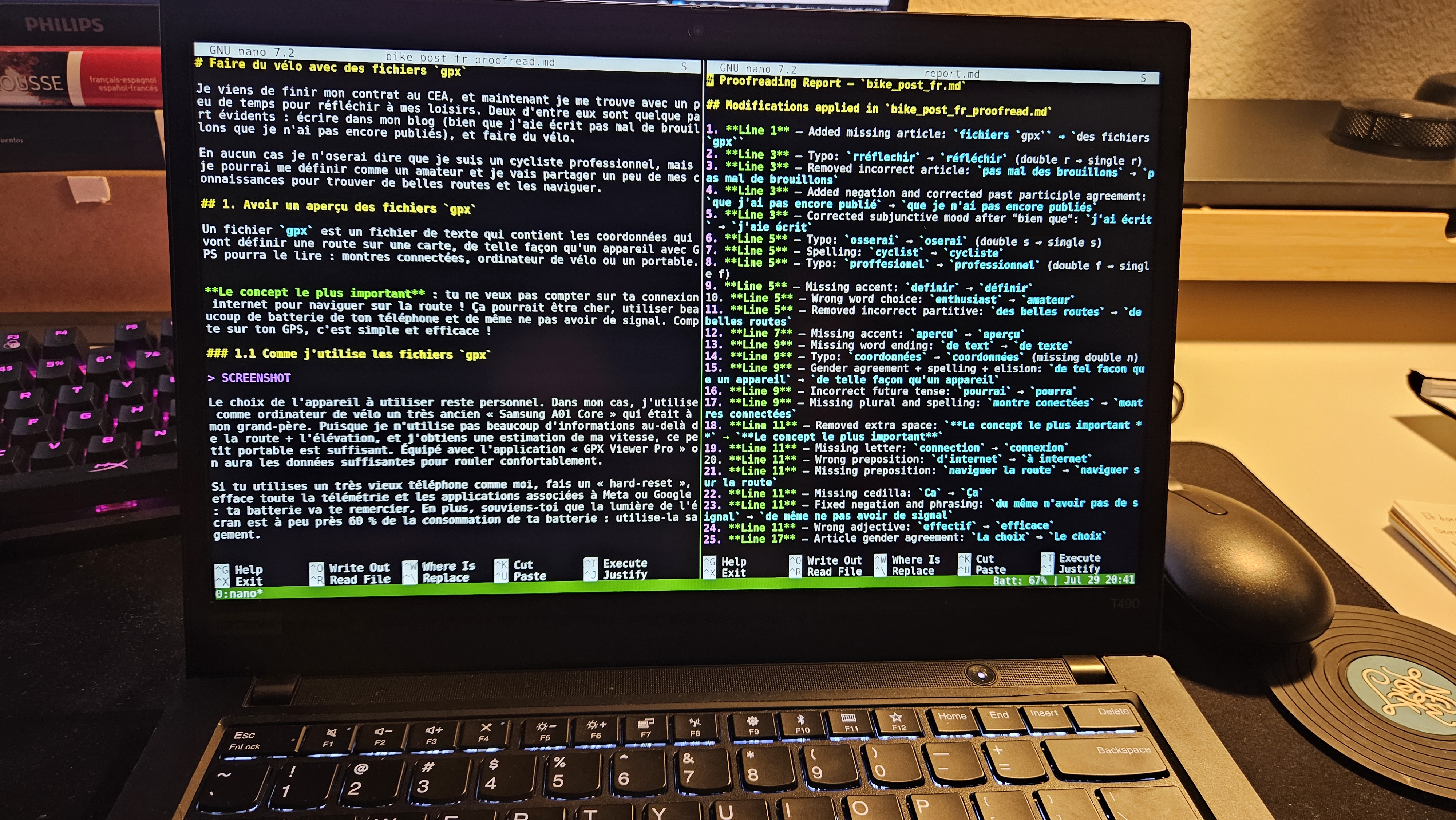
Writing in this thing is a joy. I do not have my web-browser close to me to check the best Amazon deals every minute I am slightly bored. I do not check the time every 5 minutes, and I can write with the flow. The hardest part is always to get the first attempt at writing done, and with this machine now words find their way.
Another nice surprise, is that without the desktop environment, this 6 years old machine is lasting more than 10 hours of writing session. It does not heat at all. Pretty impressive.